
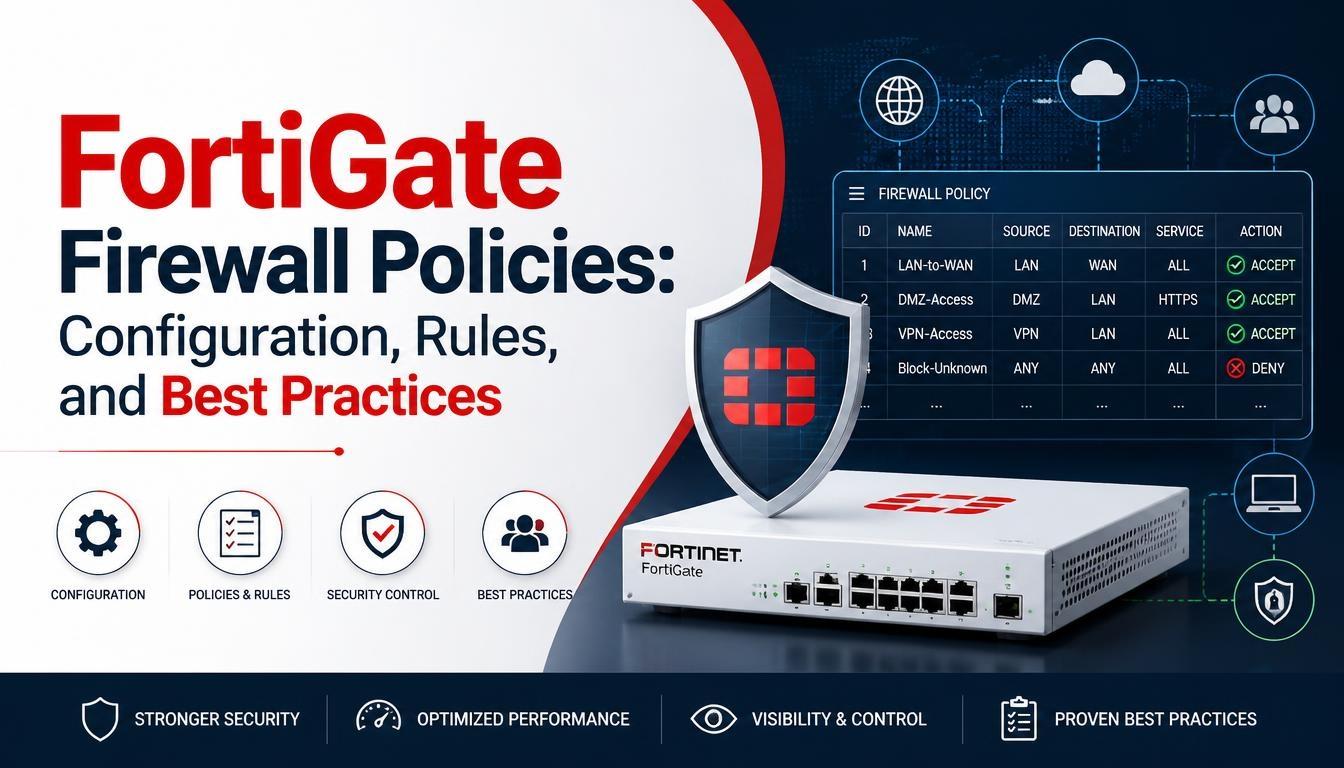
FortiGate Firewall Policies: Configuration, Rules, and Best Practices

FortiGate firewall policies control how network traffic moves between interfaces and determine which connections are allowed or denied. Understanding these policies is an important part of Fortinet NSE 4 training, as they help network administrators manage access, protect internal resources, and maintain network security.
This guide explains how FortiGate firewall policies work, their main components, configuration steps, and best practices for managing network traffic.
What Are FortiGate Firewall Policies?
FortiGate firewall policies are rules that control traffic passing through a FortiGate firewall. Each policy defines which network connections are permitted based on specific conditions, such as source address, destination address, service, and incoming interface.
When traffic reaches the firewall, FortiGate checks the configured policies to determine whether the connection should be allowed or denied.
Administrators can use firewall policies to:
-
Control access between internal and external networks.
-
Restrict unauthorized connections.
-
Allow specific applications and services.
-
Apply security inspection to network traffic.
-
Monitor traffic based on configured rules.
These policies help organizations manage network access according to their security requirements.
How Do FortiGate Firewall Policies Work?
FortiGate processes firewall policies by evaluating incoming traffic against the configured rules. The firewall checks policy conditions to identify a matching rule.
In a typical policy-based traffic flow:
-
A device sends a network request.
-
The FortiGate firewall receives the traffic through an interface.
-
The firewall checks the available policies in their configured order.
-
It evaluates source, destination, service, and other policy conditions.
-
If a matching policy permits the traffic, the connection is processed.
-
If no policy matches, the traffic is denied by the implicit deny rule.
FortiGate uses policy matching and session tracking to manage network connections. Understanding this process helps administrators identify configuration problems and control traffic more effectively.
Main Components of a FortiGate Firewall Policy
A firewall policy contains several settings that determine how traffic is handled.
Incoming and Outgoing Interfaces
The incoming interface identifies where traffic enters the firewall, while the outgoing interface specifies where the traffic should go.
For example, a policy allowing internet access may use the LAN interface as the incoming interface and the WAN interface as the outgoing interface.
Source and Destination Addresses
The source address identifies the device or network initiating a connection. The destination address identifies the resource receiving the traffic.
Administrators can use individual IP addresses, address ranges, or address groups to define these conditions.
Service
The service field specifies which network services are permitted by the policy. Common examples include:
-
HTTP – TCP port 80
-
HTTPS – TCP port 443
-
SSH – TCP port 22
-
DNS – TCP/UDP port 53
Administrators can select predefined services or create custom service objects when required.
Action
The action determines what happens when traffic matches a policy.
Common actions include:
-
Accept: Allows matching traffic.
-
Deny: Blocks matching traffic.
NAT (Network Address Translation)
NAT modifies IP address information as traffic passes through the firewall. Source NAT is commonly used when internal devices access the internet through a public IP address.
Destination NAT can be implemented using Virtual IP (VIP) objects to direct incoming traffic to internal resources.
Security Profiles
Administrators can attach security profiles to firewall policies to inspect traffic and identify potential threats.
Depending on the FortiOS configuration and licensing, these profiles can include antivirus, intrusion prevention, web filtering, application control, and DNS filtering.
How to Configure a Firewall Policy in FortiGate
FortiGate provides both a graphical user interface (GUI) and command-line interface (CLI) for configuring firewall policies.
Step 1: Access the FortiGate Interface
Log in to the FortiGate management interface using an authorized administrator account.
Navigate to Policy & Objects > Firewall Policy to view existing policies and create new ones.
Step 2: Create a New Firewall Policy
Select the option to create a new firewall policy. Enter a suitable policy name that describes its purpose.
For example, you can name a policy "LAN-to-Internet-Access."
Step 3: Configure Network Interfaces
Select the incoming and outgoing interfaces.
For a basic internet access policy:
-
Incoming interface: LAN
-
Outgoing interface: WAN
Make sure the selected interfaces match your network design.
Step 4: Define Source and Destination
Choose the appropriate source address and destination address.
For example, select the internal LAN subnet as the source and an appropriate destination address object for the required traffic.
Step 5: Select Allowed Services
Choose the services that users need to access. If users require normal web browsing, HTTP and HTTPS can be selected.
Avoid allowing unnecessary services.
Step 6: Configure NAT and Security Profiles
Enable source NAT if the internal network requires address translation to access the internet.
Configure the relevant security profiles according to organizational security requirements.
Step 7: Save and Verify the Policy
Review all configured settings and save the policy.
Test the connection from an authorized client device. Check traffic logs to confirm whether the policy is matching and processing traffic as expected.
FortiGate Firewall Policy Best Practices
Proper policy management helps maintain network security and reduces unnecessary access.
Follow the Principle of Least Privilege
Allow only the network traffic required for business operations. Avoid creating policies that permit unrestricted access between networks.
Use Clear Policy Names
Choose meaningful names that describe the purpose of each rule. This makes policies easier to identify and manage during troubleshooting.
Review Policy Order and Matching
FortiGate evaluates firewall policies according to its policy-matching process. Review policy order, matching conditions, and interface settings to ensure traffic reaches the intended rule.
Enable Appropriate Logging
Enable logging for important policies to monitor network activity. Traffic logs help administrators investigate blocked connections and identify unusual traffic patterns.
Remove Unused Firewall Policies
Regularly review existing rules and remove outdated or unnecessary policies after verifying that they are no longer required.
Apply Security Profiles
Use appropriate security inspection profiles to identify malware, suspicious applications, and other network threats.
Test Changes Before Deployment
Test new or modified firewall policies in a controlled environment whenever possible. Document changes and maintain a record of important configurations.
Common FortiGate Firewall Policy Issues and Troubleshooting
Incorrect firewall policy settings can prevent legitimate traffic from reaching its destination.
Some common issues include:
Incorrect interface selection: Verify that the incoming and outgoing interfaces match the expected traffic path.
Wrong source or destination address: Check address objects and subnet configurations to ensure they match the intended devices.
Service mismatch: Confirm that the required protocol and port are included in the policy.
NAT configuration errors: Review source NAT and destination NAT settings when connections fail because of address translation problems.
Policy not matching traffic: Check policy conditions, policy order, routing, and traffic logs to identify why the expected rule is not being applied.
FortiGate diagnostic tools, traffic logs, and CLI commands can help administrators investigate these problems.
Conclusion
FortiGate firewall policies are essential for controlling network traffic, managing access, and protecting organizational resources. Understanding policy components, configuration methods, NAT, security profiles, and troubleshooting techniques helps network administrators maintain effective firewall operations.
Following proper configuration practices also reduces unnecessary access and makes firewall management easier. For professionals preparing for Fortinet NSE 4 certification, understanding FortiGate firewall policies provides an important foundation for working with firewall administration, network security, and real-world troubleshooting scenarios.