


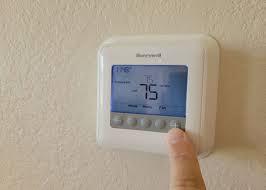
A thermostat controls how comfortable your home feels each day. Still, many homeowners face issues with it at some point. Often, these problems happen because of small setting errors, Wi-Fi changes, or system updates. When that happens, a reset is usually the fastest and easiest solution. This is especially true for a Honeywell thermostat, which many homeowners use across northern Illinois.
At first, resetting a Honeywell home thermostat may sound confusing. However, the steps are simple once you understand them. Whether your home feels too warm, too cold, or just uncomfortable, this guide explains how to reset your thermostat with confidence.
Homeowners in Hawthorn Woods, Libertyville, Mundelein, and nearby communities rely on this information to keep their heating and cooling systems running smoothly.
Why You Might Need to Reset Your Thermostat
Sometimes, your HVAC system needs a fresh start. A reset helps your thermostat and equipment communicate correctly again.
You may need a reset if:
-
The HVAC system does not respond to temperature changes
-
The screen freezes or shows an error
-
You change your internet provider
-
You move into a new home
-
You install new heating or cooling equipment
These situations are common. In most cases, your Honeywell smart thermostat still works well and only needs a reset to correct the issue.
Identify Your Honeywell Thermostat Model First
Honeywell makes several thermostat styles. Because of that, reset steps depend on the model you own.
Common Types of Honeywell Thermostats
-
Touchscreen smart thermostat models like T5, T6, T9, or T10
-
Button-style programmable thermostat models, such as the 6000 or 7000 series
-
Basic digital thermostats without schedules
-
Wi-Fi-enabled wifi thermostat systems
If you feel unsure, check the user manual. You can also remove the faceplate and look for the model number on the back of the thermostat, Honeywell Home unit.
Understanding the Different Reset Options
Not all resets work the same way. Therefore, choosing the correct option matters.
Factory Reset
This clears all settings and returns the thermostat to its original setup.
Wi-Fi Reset
This clears saved internet details but keeps temperature preferences.
Schedule Reset
This removes custom schedules on a Honeywell programmable thermostat.
Soft Reset
This simple reset works well for a wired thermostat or basic model.
Always review your thermostat guide before starting, so you do not lose important settings.
How to Reset Popular Honeywell Thermostat Models
Resetting Honeywell Smart Thermostats (T5, T6, T9, T10)
These touchscreen units fall under the Honeywell Smart Thermostat category.
Factory Reset Steps
-
Tap the Menu button
-
Scroll to Reset
-
Select Factory Reset
-
Confirm your choice
The system restarts automatically. After that, reconnect to Wi-Fi and reprogram schedules on your Honeywell wifi thermostat.
Wi-Fi Reset Only
-
Open the Menu
-
Select Wi-Fi
-
Choose Change Network
-
Follow the on-screen steps
This option works best when you change internet providers but want to keep your existing settings.
Resetting Honeywell 6000 Series Thermostats
These models use buttons and a small screen. Many homeowners choose them as reliable Honeywell programmable thermostat options.
Wi-Fi Reset Steps
-
Hold the Fan and Up Arrow buttons for five seconds
-
When the screen changes, press the second button on the right until “39” appears
-
Use the arrows to change the value to “0.”
-
Press Done
Afterward, reconnect the system using the Honeywell Home app.
Resetting Honeywell 7000 Series Thermostats
These thermostats support scheduling but lack advanced smart features.
Schedule Reset Steps
-
Press the System button
-
Hold the center button until the screen changes
-
Use the arrows to find Reset Schedule
-
Press Done
This process returns your Honey Home thermostat to default schedule settings.
Resetting Non-Programmable Thermostats
Basic models still work well in many homes across Buffalo Grove, Glencoe, and Lake Zurich.
Soft Reset Steps
-
Turn the thermostat off
-
Remove it from the wall plate
-
Take out the batteries
-
Wait one to two minutes
-
Reinsert the batteries correctly
-
Reattach the unit
This method often fixes minor screen or response problems on a wired thermostat.
How Programming and Resetting Work Together
After a reset, many homeowners notice that schedules return to default. That is why learning How To Program Honeywell Thermostat settings is important. Programming allows your programmable thermostat to follow your daily routine. When schedules match your lifestyle, your home stays comfortable while using less energy.
In addition, understanding how schedules work prevents confusion after future resets. A properly programmed honeywell home thermostat also reduces temperature swings during the day.
Using Hold and Run Settings After a Reset
After resetting your system, you may notice temperature changes that seem unexpected. This often happens when homeowners do not understand how to use the Hold and Run features. Knowing how to use the “Hold” and “Run” Thermostat Buttons helps you control temperatures manually when needed.
The Hold feature keeps a set temperature, while Run returns the system to its schedule. Learning these features helps your Honey thermostat operate the way you expect after a reset.
Fixing a Blank Screen Before or After Resetting
Sometimes, homeowners attempt a reset because the screen goes dark. In many cases, power or battery issues cause this problem. Understanding how to fix a Blank Honeywell Thermostat can save time before calling for help.
Checking batteries, wiring, and power sources often restores the display. These steps work for many Honeywell home thermostat models found in older and newer homes.
Helpful Safety Tips Before You Reset
Preparation makes the reset process easier and safer.
-
Write down custom schedules first
-
Confirm your thermostat model
-
Reset during mild weather when possible
-
Use the Honeywell Home app if your model supports it
These steps help avoid mistakes and reduce downtime.
What to Do After Resetting Your Thermostat
Once the reset finishes, take a few minutes to test everything.
-
Reconnect Wi-Fi for any wireless thermostat
-
Reenter preferred temperature settings
-
Test heating and cooling modes
If the system still does not respond, wiring or HVAC equipment issues may exist. At that point, professional service is the safest choice.
Why Homeowners Trust Gleason HVAC
Homeowners in Vernon Hills, Wauconda, and Winnetka trust Gleason HVAC for expert thermostat care. With over 20 years of experience, their technicians understand every Honeywell thermostat, from basic units to the best smart thermostat options available today.
In addition to thermostat resets, Gleason HVAC also supports:
-
Honeywell home thermostat installation
-
HVAC diagnostics related to thermostat problems
Their local experience makes them a reliable choice across northern Illinois.
Is It Time to Upgrade Your Thermostat?
If resets happen often, an upgrade may help. Newer systems offer better control and energy savings.
Popular options include:
-
Honeywell smart thermostat systems
-
Energy-efficient wifi thermostat models
-
Easy-to-use systems are considered the best thermostats for families
A professional technician can help you choose the right option for your home.
Final Thoughts
Resetting a Honeywell thermostat does not need to feel stressful. With clear steps and simple preparation, you can restore comfort quickly.
This guide explained how to reset a thermostat honeywell home, showed how resets connect with programming and settings, and shared helpful tips. If problems continue, Gleason HVAC is ready to help homeowners across Illinois stay comfortable all year long.

 English
 Arabic
 French
 Spanish
 Portuguese
 Deutsch
 Turkish
 Dutch
Dutch
 Italiano
 Russian
 Romaian
 Portuguese (Brazil)