

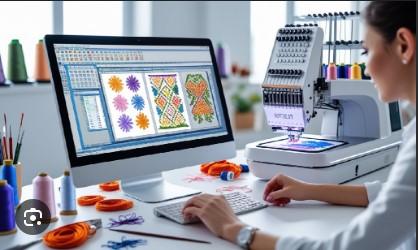
A Step-by-Step Guide to Embroidery Digitizing for Logos and Apparel

Introduction
You have a great logo or a cool design for a t-shirt. You want to see it embroidered—to feel that textured, premium finish. But when you try to load your image file into your machine, you hit a wall. That’s because your embroidery machine doesn’t understand pictures; it understands a very specific, coded language of stitches. The art of translating your visual design into that language is called Embroidery Digitizing. It might sound technical, but think of it as creating a detailed road map for your needle to follow. Whether you're a small business owner looking to brand apparel or a hobbyist wanting to personalize gifts, learning this process is incredibly empowering. This step-by-step guide will break down the journey from your digital artwork to a ready-to-stitch file, giving you a clear roadmap to create clean, professional results for your logos and apparel.
Before You Begin: Setting the Stage for Success
Before you open any software, there are a few non-negotiable prerequisites. Skipping this prep work is the number one reason for frustrating results.
1. Gather Your Tools:
-
Digitizing Software: This is essential. You cannot use Photoshop or Canva. Programs like Embrilliance, Hatch Embroidery, or Wilcom are industry standards. Many offer free trials, which are perfect for learning.
-
A Good Computer: Digitizing software can be demanding. A computer with a decent processor and enough RAM (8GB minimum) will save you from constant lag.
-
Your Artwork: Start simple. Choose a logo or design with bold shapes, clear boundaries, and minimal colors for your first attempt. Avoid photos or designs with tiny, intricate details.
2. Adopt the Right Mindset:
Understand that you are not just tracing. You are engineering a structure out of thread. You must account for how the thread will pull on the fabric and how to build a stable foundation. This mindset shift—from artist to architect—is the key to success.
Your Step-by-Step Digitizing Workflow
Follow these stages in order. Each one builds upon the last to create a stable, stitchable design.
Step 1: Prepare Your Artwork File
The saying "garbage in, garbage out" is especially true here. Start in a simple image editor (even a free online one).
-
Simplify: Remove unnecessary background colors and tiny speckles.
-
Increase Contrast: Make the edges between shapes as sharp as possible.
-
Convert to Black & White (Grayscale): For your first design, focus on mastering structure, not color. This simplifies the process immensely.
-
Save as a PNG: This format keeps edges cleaner than a JPG.
-
Pro Tip: If you have a vector file (.SVG, .AI, .EPS), use it! Vectors are a digitizer's best friend.
Step 2: Software Setup and Import
Open your digitizing software and create a new file.
-
Set Your Hoop Size: Choose a size relevant to your design and your machine's capabilities.
-
Import Your Prepared Image: Place your PNG or vector file onto the digital canvas.
-
Define the Stitch Area: Use the software's tools to draw a box or outline that marks the maximum area your design will cover. This helps with planning and positioning.
Step 3: Manual Tracing and Object Creation
This is the core of controlled digitizing. Resist the "Auto-Digitize" button! It will create a mess. Instead, manually trace your design using the software's drawing tools (like the Bezier or Point tool).
-
Trace Each Shape Separately: Create an outline for every distinct element in your design. A logo with a circle and text inside it would need two separate outline objects: one for the circle and one for the text.
-
Work from Background to Foreground: Trace the elements that will stitch first (like a background shape) before tracing elements that will sit on top.
-
Think in Layers: The software will manage these outlines as objects in a stacking order. What you trace first often becomes the bottom layer.
Step 4: Assign Stitch Types and Properties
Now, you give life to those outlines by telling the software how to stitch them. This is where your design choices take shape.
-
For Large, Solid Areas (like the background circle): Select the outline object and assign a Fill Stitch (sometimes called Tatami or Ceding stitch). In the properties, you will set:
-
Density: This is stitches per inch (SPI). For a first try on a mid-weight t-shirt, start with a moderate density like 4.0 - 5.0.
-
Angle/Direction: Change the angle of the fill lines (e.g., 45 degrees) to create visual texture. You can use different angles in different sections.
-
-
For Text, Borders, and Narrow Elements: Select the outline object and assign a Satin Stitch (or Column stitch). You will set:
-
Width: How wide the glossy column of stitches will be.
-
Stitch Length: Use shorter stitches for tight curves to keep the edge smooth.
-
-
For Fine Details and Outlines: Use a Run Stitch. This is a simple line of stitching, perfect for adding a delicate outline around a shape or adding very fine details.
Step 5: Build the Foundation with Underlay
This step separates amateur files from professional ones. Underlay is foundational stitching that goes down before the top stitches you just defined.
-
Select your Fill Stitch objects and apply an underlay. A good starting point is a Edge Run or Zig-Zag underlay.
-
Why This is Crucial: Underlay stabilizes the fabric to prevent puckering and creates a raised base for the top stitches, giving your design a professional, three-dimensional look. Never skip underlay on fill areas.
Step 6: Establish the Stitching Sequence
The order in which your design sews out matters for efficiency and cleanliness. Use the software’s object manager or timeline view.
-
Ensure the software is set to stitch objects from the bottom layer to the top layer.
-
Check that all parts of one color stitch together before the machine trims and switches to the next color. This minimizes thread changes and jump stitches.
-
A logical sequence creates a cleaner back of the design and faster production.
Step 7: Generate, Save, and THE MOST IMPORTANT STEP: TEST
You’ve built the blueprint. Now it’s time to see it in action.
-
Generate the Stitches: Use the "Create Stitches" or "Apply" function. The software will render your outlines and settings into the actual stitch paths.
-
Save in Your Machine Format: Save the file in the format your machine reads (e.g., .PES for Brother, .DST for Tajima, .EXP for Melco).
-
TEST STITCH ON ACTUAL FABRIC: This is non-negotiable. Hoop a scrap piece of the exact fabric you plan to use for the final product (e.g., the same t-shirt material). Stitch out your design and watch it carefully.
The Learning Loop: Analyze and Adjust
Your first test stitch is not the end; it's the beginning of the learning loop.
-
Did it pucker? Your density is likely too high for the fabric. Lower the stitch density in your fill objects.
-
Are the shapes distorted? You need to apply "Pull Compensation." This means slightly widening shapes in the software to counteract the thread’s pull on the fabric.
-
Does it look flat? You may need to adjust or increase your underlay.
-
Are the details messy? You might need to switch a satin stitch to a run stitch, or adjust the stitch length.
Go back into your software, make these adjustments, save a new version, and test again. This iterative process is how professionals perfect every file.
Conclusion
Embroidery Digitizing is a deeply rewarding skill that blends technical precision with creative problem-solving. While the journey from a simple logo to a flawless stitch-out involves many steps—from careful artwork prep and manual tracing to strategic underlay and relentless testing—each stage builds your understanding and control. By following this structured, step-by-step approach, you move from hoping your design works to engineering its success. Remember, every pro started with a first, imperfect file. Embrace the process, learn from each test stitch, and enjoy the incredible satisfaction of seeing a design you digitized yourself come to life in perfect, textured thread. Your machine is ready and waiting. Now you have the map to guide it.